- Official Post

📱 CSOMOD — CS 1.6 Android Mobile Client
Play Counter-Strike 1.6 on Android and connect directly to the CSOMOD servers using Xash3D FWGS
⚠️ Before you start: You will need a File Manager application on your Android device. If you don't already have one, you can download one from the Google Play Store.
🟦 Step 1 — Install Xash3D FWGS
Download the Android version of Xash3D FWGS:
Install the downloaded APK on your Android device.
⚠️ Note: Android may ask you to allow installation from unknown sources. If prompted, enable Install unknown apps for your browser or file manager.
🟦 Step 2 — Download CS 1.6 Files
Download the required CS 1.6 game files:
👉 Download CS 1.6 Engine Files
Extract cs16.zip.
You should see these two folders:
🟦 Step 3 — Copy the Files to the Xash Folder
Open your phone's Internal Storage and locate the folder:
Copy the extracted cstrike and valve folders into the xash folder.
Your folder structure should look like this:
🟦 ⭐ Step 4 — Download CSOMOD Resources (Optional)
To avoid downloading server files while connecting to the CSOMOD server, you can download the complete CSOMOD resources in advance.
👉 Download CSOMOD Server Resources
Extract the downloaded ZIP and copy the cstrike_downloads folder into your xash directory.
Your final folder structure should look like this:
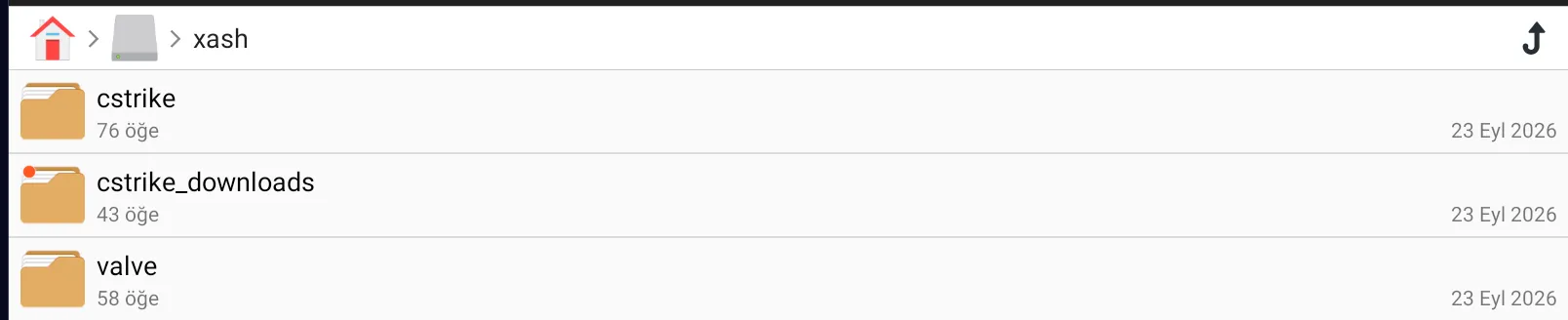
💡 Tip: This step is optional. However, pre-downloading the resources can make your first connection to the server much faster and prevents you from having to download files while connecting.
🟦 Step 5 — Launch Xash3D FWGS
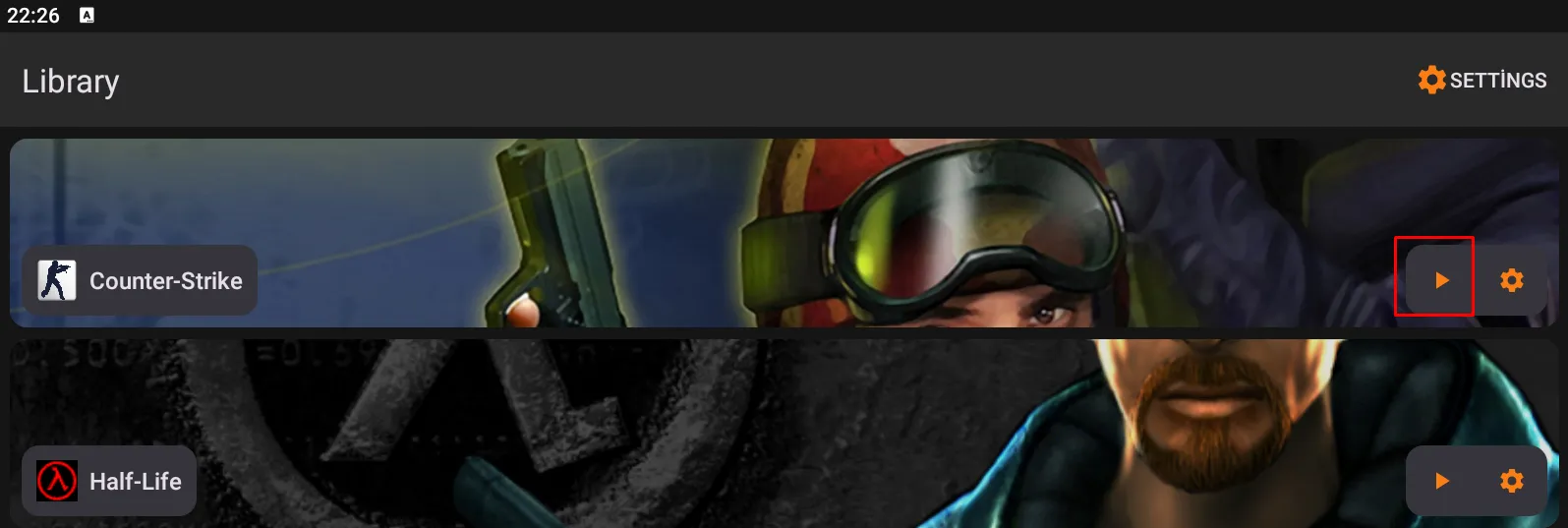
Open the Xash3D FWGS application.
Select Counter-Strike from the Library.
🟦 Step 6 — Play CS
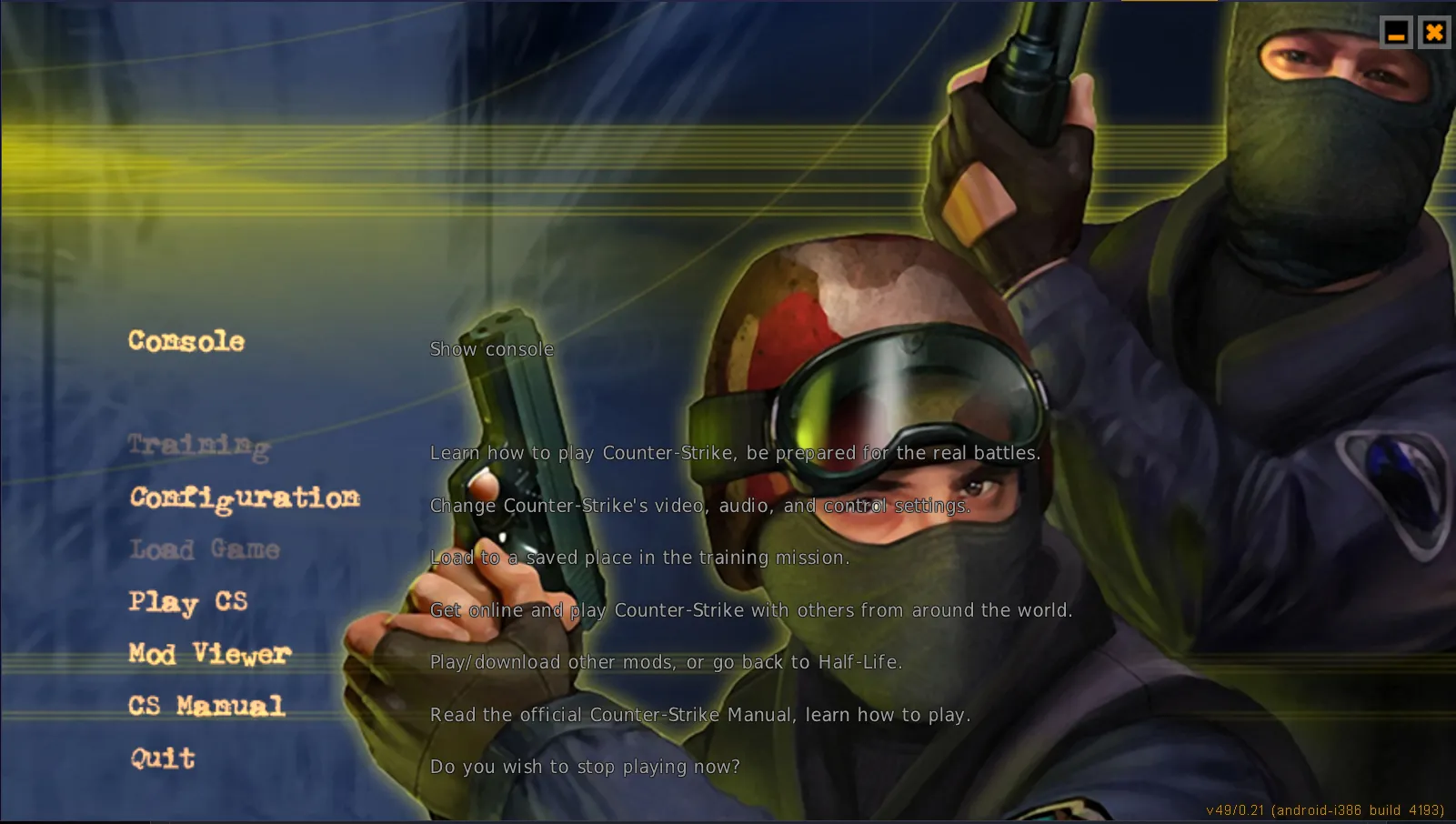
Select:
🎮 Play CS
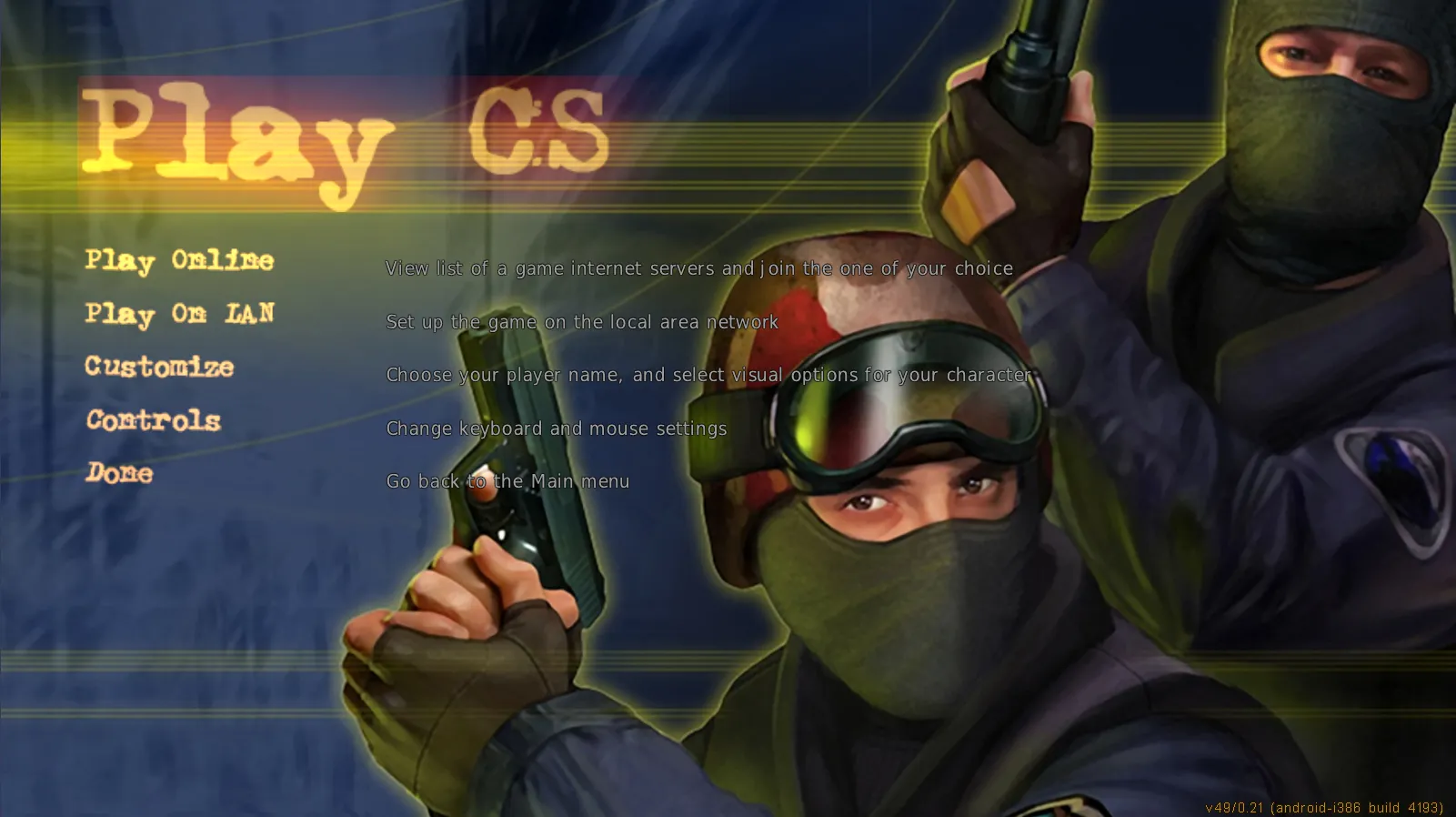
Then select:
🌐 Play Online
🟦 Step 7 — Add the CSOMOD Server
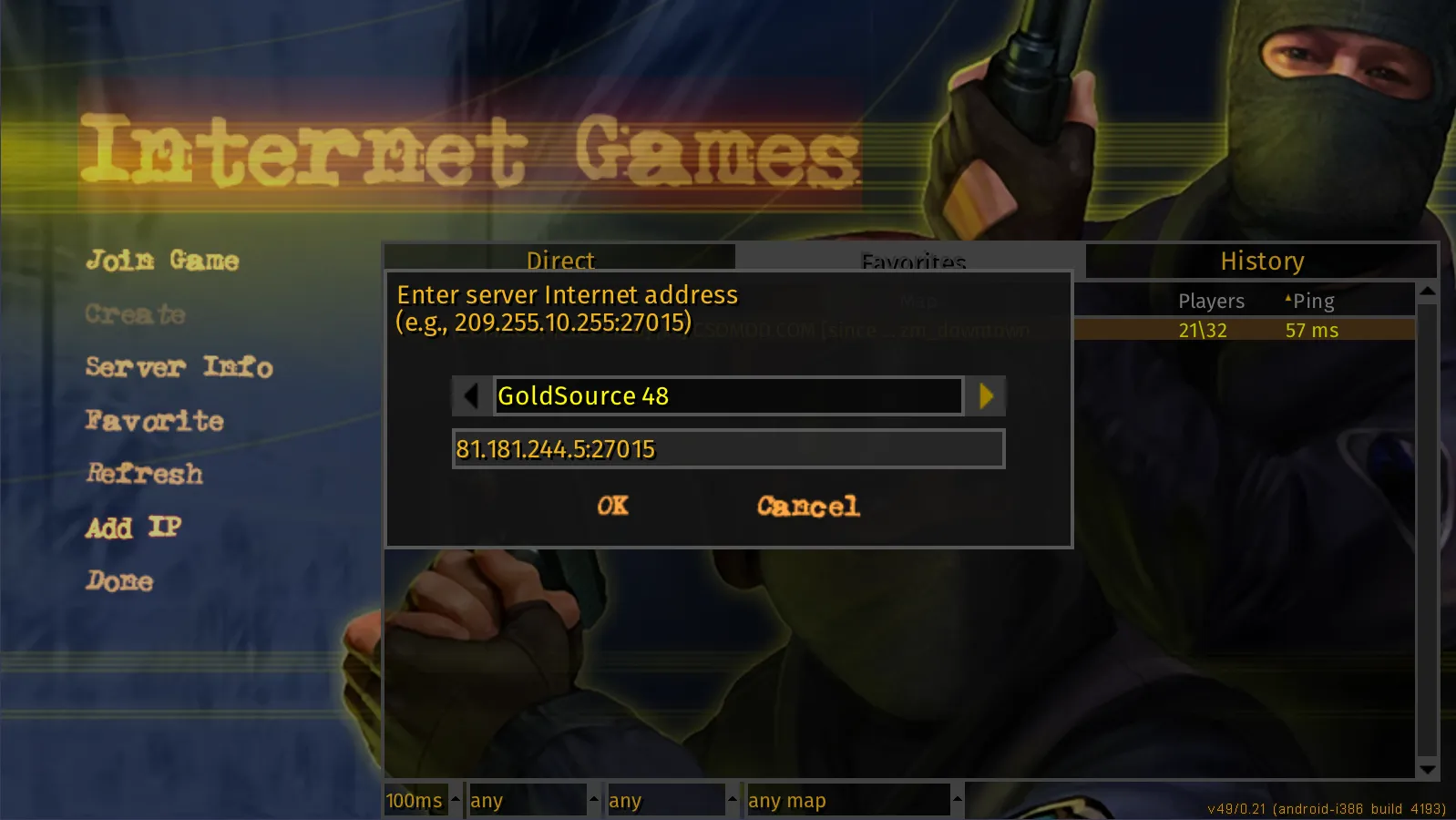
Add the CSOMOD server IP address or DNS name to your favourites.
When adding the server, make sure to select:
GoldSource 48
🟦 Step 8 — Join the Server
Select the CSOMOD server from your favourites and press:
🟢 Join Game
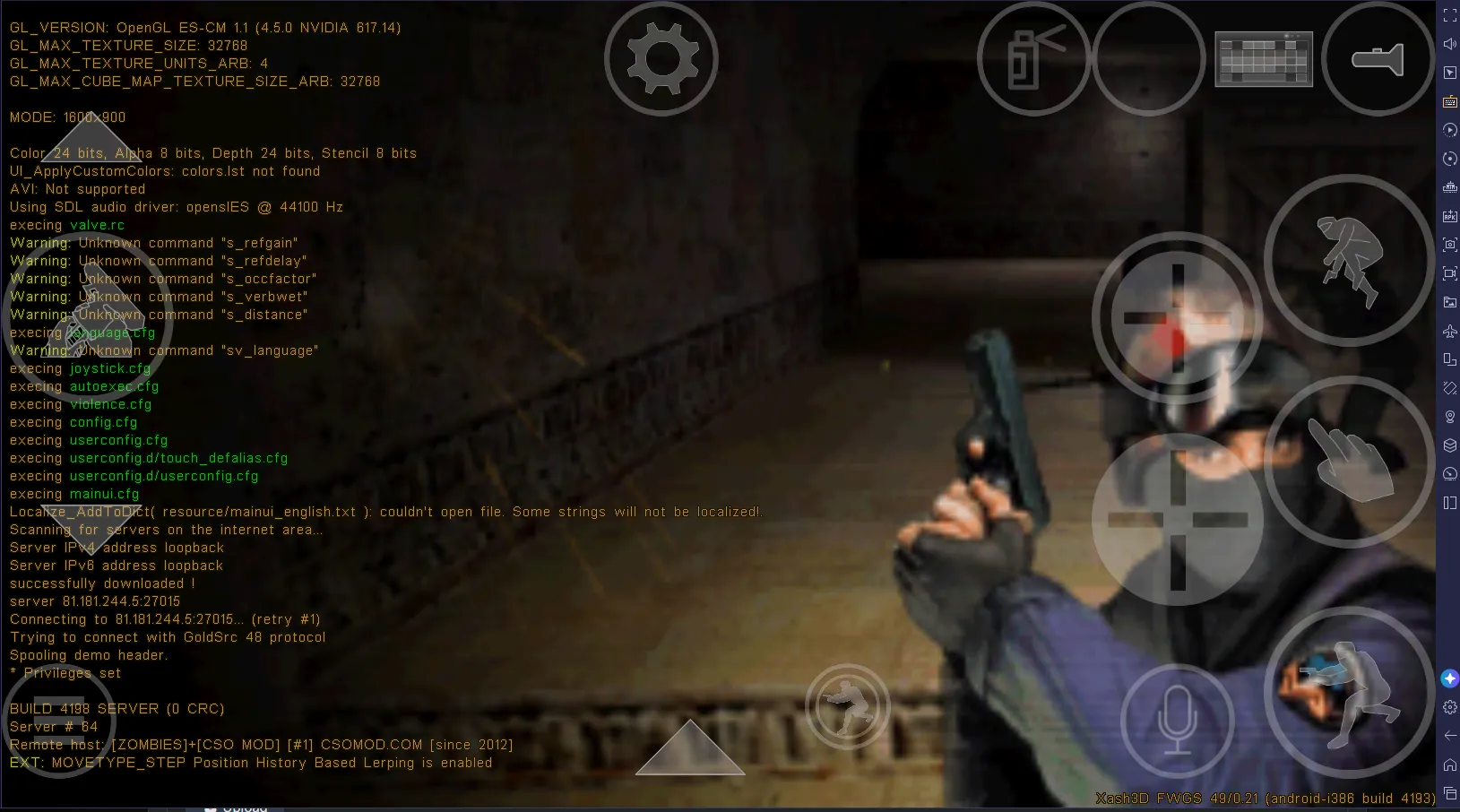
🧟 Welcome to CSOMOD!
You're now ready to play Counter-Strike 1.6 on Android and join the CSOMOD Community.
🔥 Good luck and have fun!
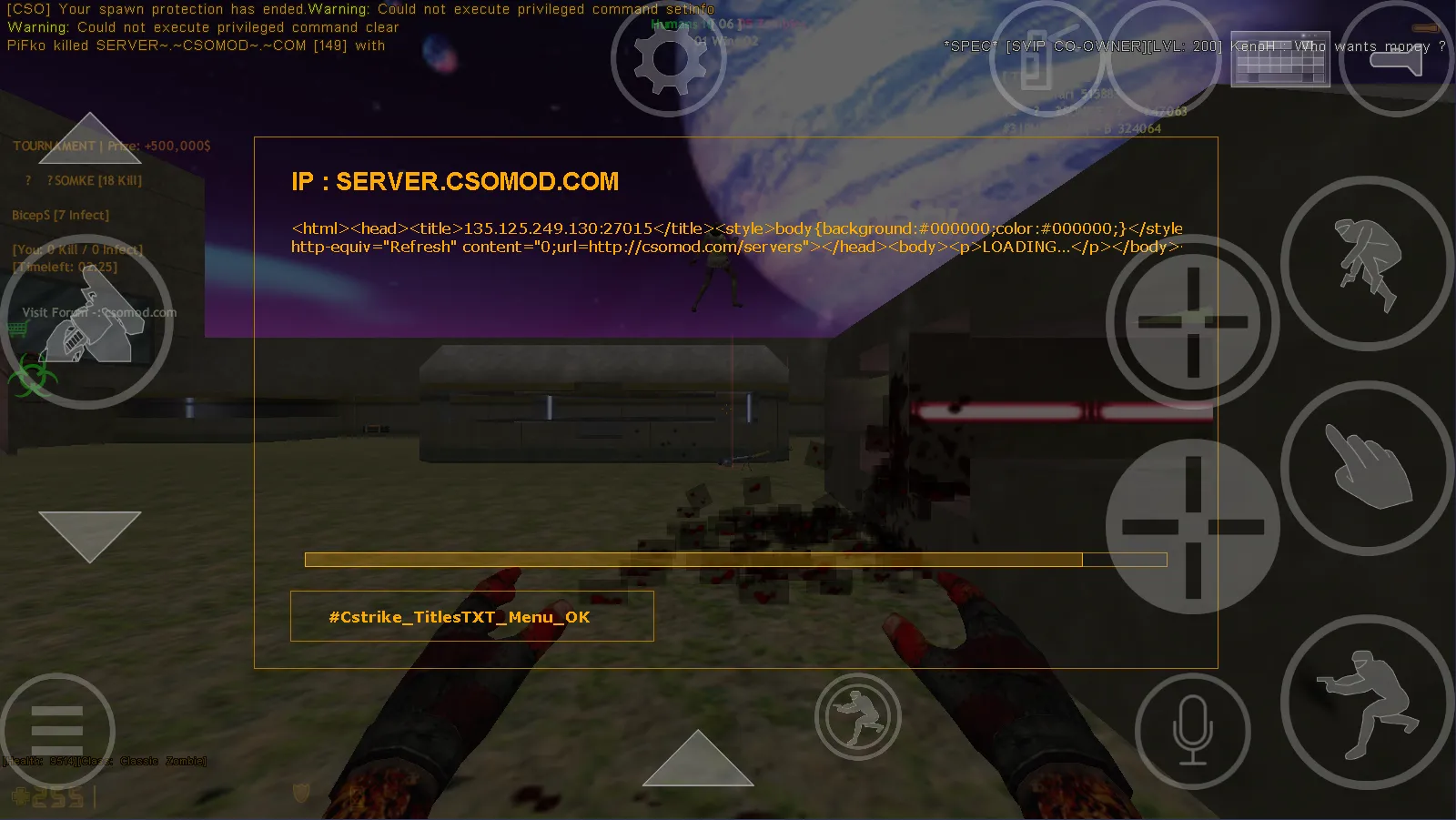
📁 Final Folder Structure
For reference, your final xash directory should look like this:
⚡ Quick Downloads
| File | Download |
|---|---|
| 📱 Xash3D FWGS | Download APK |
| 🎮 CS 1.6 Engine | Download cs16.zip |
| 📦 CSOMOD Resources | Download cstrike_downloads.zip |
⚡ F.A.Q
When I join the server, [Xash3D] is automatically added to my name. Can I remove it?
Yes. You can disable this option from the Xash3D configuration.
Follow these steps:
Close Xash3D FWGS completely.
Open your phone's Internal Storage.
Open the xash folder.
Open the cstrike folder.
Find the file:
Open config.cfg with a text editor.
Find the following setting:
Change its value from:
to:
Save the file.
Start Xash3D FWGS again.
That's it! [Xash3D] will no longer be automatically added to your player name.
💡 Note: If Xash3D changes the setting back, make sure the game is completely closed before editing config.cfg, and verify that the file was saved correctly.
🎮 See You In-Game!
CSOMOD — Since 2012
🧟 Zombie Mod • Counter-Strike 1.6 • Android • Community
🔥 Good luck and have fun!